
GlowWall: 4K & 3D Wallpapers
RC BUILD AND RENEW SERVICES CORPPersonalization
0.00.00 Reviews
- Version
- 2.0.3
- Installs
- 50.00K
- Age Rating
- Teen
Screenshots
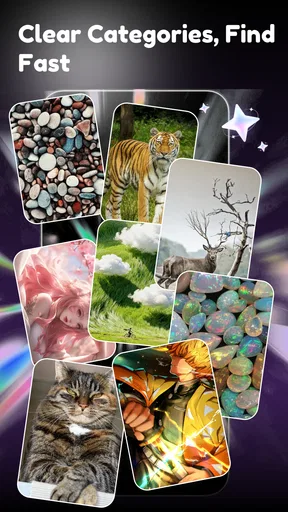
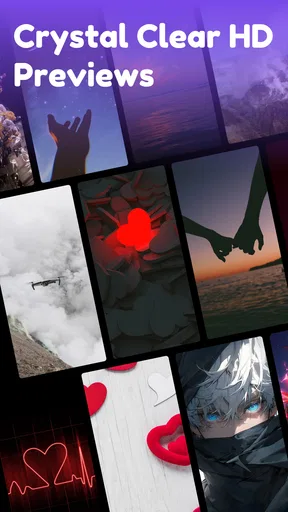
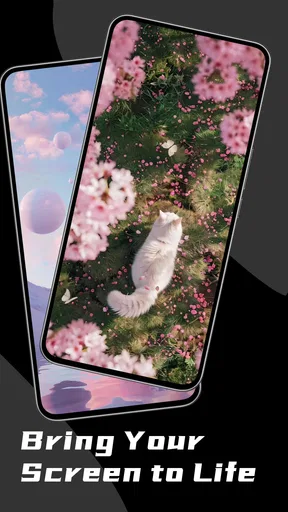
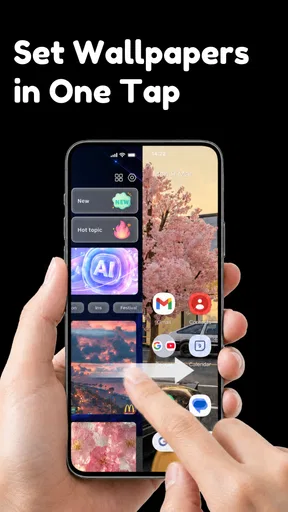
Our Review of GlowWall: 4K & 3D Wallpapers
 Analysis by Appyee
My phone usually feels personal for a few days after I change the wallpaper, then the same image starts to disappear into the background. GlowWall approaches that problem as a broader personalization app: it combines high-resolution live wallpapers, AI-generated artwork, and a launcher intended to make the whole home-screen experience feel more fluid. I reviewed it as a daily phone tool rather than as a simple wallpaper gallery, and that distinction matters. The strongest part is the way it lets the visual mood of the phone change quickly. The weakest part is that a more ambitious setup also creates more places where a user may need to adjust things before everything feels comfortable.
The app is free, belongs to the personalization category, and comes from RC BUILD AND RENEW SERVICES CORP. It is aimed at Teen users, runs on Android 9 or later, and its current version is 2.0.3. With more than 50 thousand installs, it is not an obscure experiment, but it also does not have the long-established familiarity of the biggest wallpaper and launcher names. I would look at it as a convenient all-in-one option for someone who wants to refresh a phone without collecting several separate tools.
From a tired home screen to a complete visual refresh
I look at the refresh as more than swapping a picture: this section follows the path from a stale home screen to a look that still works when I’m checking messages or opening an app in a hurry. A useful first move is to choose the mood and readability you want before browsing, so the visual experiments stay purposeful. From there, the next section considers how to judge the finished setup in everyday use.
The starting point: when changing one picture is not enough
My starting point was a familiar one: the phone worked perfectly, but the home screen felt stale. A normal wallpaper app can solve the first layer of that problem by offering still images. A launcher can solve another layer by changing how icons, app access, and the home screen are arranged. GlowWall tries to put both ideas in the same workflow, while adding AI art for people who want something less predictable than a standard image search.
That combination is useful because it changes the decision from “Which picture should I use?” to “What kind of phone experience do I want today?” I could approach the app looking for a calm background, a more dramatic animated scene, or an original-looking AI image. The launcher element then becomes the handoff between the chosen visual and the way I actually reach my apps.
There is a trade-off here. A dedicated wallpaper app is usually easier to understand because its job is narrow. A dedicated launcher often offers deeper control over layout and behavior. GlowWall is more appealing when convenience matters more than building a highly customized system from separate parts. If you already have a launcher arranged exactly the way you like, the wallpaper side may be the main reason to use it, and replacing the familiar home-screen layer may feel unnecessary.
Finding a visual direction instead of endlessly browsing
The most practical way I found to use the app was to decide on a mood before browsing. Starting with “something nice” can lead to aimless scrolling, especially when a catalog mixes static-looking art, animated backgrounds, and more abstract AI creations. A clearer goal makes the app feel faster: a dark background for easier icon reading, a bright image for a weekend refresh, or a subtle animated scene that adds movement without competing with notifications.
The 4K label is most meaningful on phones with a sharp display and a suitable screen size. It does not automatically make every image look better. A detailed background can become visually noisy once icons, widgets, and text are placed over it. I preferred artwork with a relatively quiet area behind the main icons, even when a more elaborate image looked impressive in isolation.
That is one of the less obvious choices in this kind of app: the best wallpaper is not always the most detailed one. I would first check how the image behaves behind the actual home screen, not just how attractive it looks in a preview. If the subject sits under the clock or the colors make app labels hard to read, a simpler design may produce a better everyday result.
Using AI art with a little restraint
The AI art angle is useful when I want a theme that feels more personal than a familiar landscape or abstract gradient. It can help when I know the atmosphere I want but cannot find the exact image in a conventional collection. For example, I might want a futuristic city with muted colors rather than a generic neon city, or a soft illustrated scene that matches a particular accent color.
I would not treat AI art as a guaranteed replacement for carefully selected photography or illustration. Generated images can be visually striking, but they may also feel busy or stylistically inconsistent with the rest of the phone. The practical workflow is to generate or select several candidates, then judge them at icon size. A background that looks creative in full-screen viewing may make the home screen harder to scan.
Another useful habit is to keep the lock screen and home screen roles separate. A dramatic image can work well when it is seen briefly on the lock screen, while the home screen benefits from calmer contrast. Even if I want both surfaces to share a theme, I would choose different levels of detail rather than automatically applying the same visual treatment everywhere.
Applying the wallpaper and handing control to the launcher
Once I had a visual direction, the next step was applying it and checking the phone as a working tool. This is where GlowWall’s launcher matters. The wallpaper is not the final outcome by itself; the real test is whether the home screen still lets me find the apps I use repeatedly without extra thought.
I would make the change when I have a few minutes to inspect the result, not while rushing out the door. After applying a background, I would open the apps I use most, check whether the icons remain readable, and confirm that the home screen arrangement still feels natural. If the launcher changes the path to the app list or alters the feel of navigation, that is the moment to decide whether the convenience of the combined setup outweighs the familiarity of the phone’s previous arrangement.
This is also the point where a user should remember that personalization is not only visual. A launcher can affect muscle memory. The same swipe or tap may lead to a different place, and a layout that looks cleaner may initially slow me down. I consider that normal friction rather than a flaw by itself, but it should be part of the decision before making the new launcher the everyday default.
A realistic everyday handoff
Imagine I am preparing my phone for a work week. I want a background that looks polished but does not distract me during quick checks. I browse for a restrained image, compare it behind the existing icons, and then use the launcher to keep the apps I need close at hand. Later, I may switch to a more expressive AI artwork for personal time without rebuilding the entire phone from scratch.
That scenario shows where the app makes sense. The handoff from discovery to application is short, and the same place offers both the image and the home-screen context. Instead of downloading an image, finding it in storage, opening system settings, and separately configuring a launcher, I can treat the change as one personalization session.
The compromise is that I am trusting one app with more of the experience. If I only want a single still image, that broader workflow may be more than I need. If I enjoy changing launchers and wallpapers independently, separate specialist apps can provide a clearer boundary between those tasks.
What the finished phone feels like
When the choices are balanced, the result is more cohesive than simply placing a colorful picture behind a standard icon grid. The wallpaper establishes the atmosphere, the AI art option can make that atmosphere less ordinary, and the launcher helps the home screen feel like part of the same design decision. I noticed the difference most when I chose an image with enough empty space for icons and avoided excessive motion.
The live wallpaper option is best for users who want the phone to feel active rather than static. Movement can make a familiar device feel refreshed immediately. At the same time, animation is not automatically better for every situation. Some people prefer a stable background for reading icons, and some will find constant visual activity distracting. I would use live wallpapers selectively, especially on a work-focused home screen.
The 4K presentation also makes the display quality more noticeable, but resolution should be considered alongside composition. A highly detailed image can expose scaling or cropping differences between phone screens. Before settling on one, I would inspect the preview in portrait orientation and look at the edges, since a design that works in a wide image may lose its subject when fitted to a taller display.
Where the workflow breaks down
The first friction point is choice overload. Combining live wallpapers, AI art, and launcher personalization gives GlowWall a wider scope, but a wider scope can make the first session less direct. Someone who wants to change one background in under a minute may feel that there are too many possible directions. My solution is to decide in advance whether I am browsing, creating a look, or testing the launcher; trying to do all three at once makes the process feel less focused.
The second issue is the difference between a preview and daily use. A wallpaper can look excellent in a showcase view and still interfere with icons, widgets, or text. I would not judge the app only by the most dramatic artwork. The useful question is whether I can still identify the next app quickly, especially outdoors or when the phone is used for only a few seconds.
The launcher is another possible stopping point. Users who have spent time arranging their current home screen may not want to relearn navigation merely to gain a new visual style. GlowWall is a better fit for someone open to a combined refresh than for someone who regards the launcher as untouchable. If a launcher’s behavior is the main reason you are considering the app, I would test the new arrangement gradually rather than moving every shortcut immediately.
Live backgrounds can also be the wrong choice for a practical phone. If you value a quiet interface, maximum simplicity, or a completely predictable home screen, still artwork will probably suit you better. I found the app more convincing when I treated animation as an accent rather than a requirement. The same applies to AI art: it is a creative option, not a reason to replace every carefully chosen image.
Who should use it, and who should look elsewhere
I would recommend GlowWall to someone who wants a noticeable phone makeover without assembling a wallpaper source, an image workflow, and a launcher separately. It is particularly suitable for users who enjoy experimenting with visual themes, want to move between static and animated styles, or like the idea of generating artwork that feels less common than a standard catalog image.
It also suits people who are comfortable evaluating a design in context. The best results come from checking icon readability, choosing motion thoughtfully, and accepting that the launcher may require a short adjustment period. That is more hands-on than simply selecting a background and forgetting about it.
I would skip it if my only goal were a single quiet wallpaper, if I strongly preferred the phone maker’s existing launcher, or if I disliked changing familiar navigation patterns. In those cases, a focused wallpaper app or the built-in personalization settings may be the better choice. A specialist launcher is also preferable for someone who wants extensive control over home-screen behavior rather than a convenient visual refresh.
Practical advice before settling on a setup
I would begin with a still image, because it provides a stable reference for judging the launcher and icon layout. After the home screen feels comfortable, I would try a live wallpaper and compare whether the added movement improves the experience or merely adds distraction. This two-stage approach makes it easier to identify whether a problem comes from the artwork or from the launcher arrangement.
I would also keep the first layout deliberately simple. Place only the apps I reach for most often, then use the phone normally for a day before adding more visual elements. This exposes friction that a quick preview hides. If I cannot find an app without thinking, the design needs adjustment no matter how attractive the background is.
For AI artwork, I would save the strongest candidates mentally by function rather than by novelty: one for readability, one for a dramatic lock screen, and one for a relaxed personal theme. That prevents the common mistake of choosing the most unusual image and then tiring of it quickly. The point of personalization is to make the phone easier and more pleasant to use, not just more impressive for a first glance.
My final take on the complete workflow
GlowWall works best as a guided refresh for the whole phone rather than as a basic image picker. Its mix of live wallpapers, AI art, and a launcher gives me more ways to shape the result, and the free price makes experimentation easy. The developer, RC BUILD AND RENEW SERVICES CORP, has positioned the app around convenience, but the user still needs to make thoughtful choices about movement, contrast, and navigation.
After using it, my recommendation is conditional but positive: try it if you want your wallpaper and home screen to feel like one design project. Start with a readable still background, test the launcher with a small layout, and only then explore more animated or expressive options. If you prefer a fixed, familiar interface, the app’s broader workflow may feel like needless change.
The best outcome comes from treating GlowWall as a daily-use design tool, not a gallery of flashy previews. When the artwork supports the icons and the launcher does not interrupt your habits, the phone feels genuinely refreshed. When the image is too busy or the new navigation slows you down, returning to a simpler setup is the sensible choice. For me, that balance is what makes this personalization app worth trying.
Verdict
Strengths of GlowWall: 4K & 3D Wallpapers
- Large collection of sharp 4K wallpapers for modern phone displays.
- Includes eye-catching 3D and depth-style designs.
- Frequent content updates help keep the library fresh.
- Simple browsing makes it easy to discover new backgrounds.
- Supports quick wallpaper previews before applying them.
Limitations of GlowWall: 4K & 3D Wallpapers
- Some premium wallpapers may require a subscription or purchase.
- High-resolution previews can consume considerable mobile data.
- Animated options may increase battery usage on some devices.
- The app may display ads during browsing or downloading.
- Compatibility with advanced 3D effects varies by phone model.
Similar Picks in This Category
View All
Microsoft SwiftKey AI Keyboard
SwiftKey4.3

Wallpapers
Google LLC4.1

Zedge™ Wallpapers & Ringtones
Zedge4.7

Yandex Browser with Alice AI
Direct Cursus Computer Systems Trading LLC4.3

Ringtone Maker:create ringtone
Big Bang Inc.4.7

Fonts Keyboard
Fonts Keyboard3.9
Frequently Asked Questions
What is GlowWall: 4K & 3D Wallpapers?
GlowWall: 4K & 3D Wallpapers is a wallpaper application designed for users who want to personalize their phone with high-resolution backgrounds. Its collection focuses on glowing, colorful, futuristic, abstract, and three-dimensional artwork. After installing it, you can browse different visual styles, preview how an image looks on your screen, and apply a wallpaper directly or save it for later use, depending on the available device options.
Does GlowWall offer genuinely 4K and 3D wallpapers?
The app is presented as a source of 4K and 3D-style wallpapers, but the actual resolution and visual quality can vary between individual images and according to your device. Some backgrounds are designed to create a three-dimensional effect through depth, lighting, and perspective rather than true interactive 3D movement. Users with high-resolution displays should still check the preview carefully, because cropping and screen proportions may affect the final appearance.
Can I use GlowWall wallpapers on both the home screen and lock screen?
In most cases, wallpapers downloaded or selected through GlowWall can be used on the home screen, lock screen, or both, although the exact choices depend on your Android or iOS version and the phone manufacturer’s interface. Some devices may crop the image automatically or apply separate settings for each screen. Before confirming, review the system preview to make sure important parts of the artwork are not hidden.
Is GlowWall: 4K & 3D Wallpapers free to download and use?
GlowWall may be available to install at no initial cost, but free wallpaper apps commonly include advertising, optional premium content, or subscription-based features. The available catalog and download options can also change after updates. Before downloading a large collection, check the app-store listing for current in-app purchases, trial terms, and cancellation details. This is especially important if you want an uninterrupted, ad-free experience.
Does GlowWall require special permissions or affect battery life?
A wallpaper application generally needs access related to saving images or setting them as device backgrounds, but it should not require permissions unrelated to that purpose. Animated, live, or frequently changing wallpapers may consume more battery and system resources than static images, particularly on older phones. If battery life is important, choose still backgrounds, disable automatic wallpaper rotation, and review the permissions requested during installation.
